

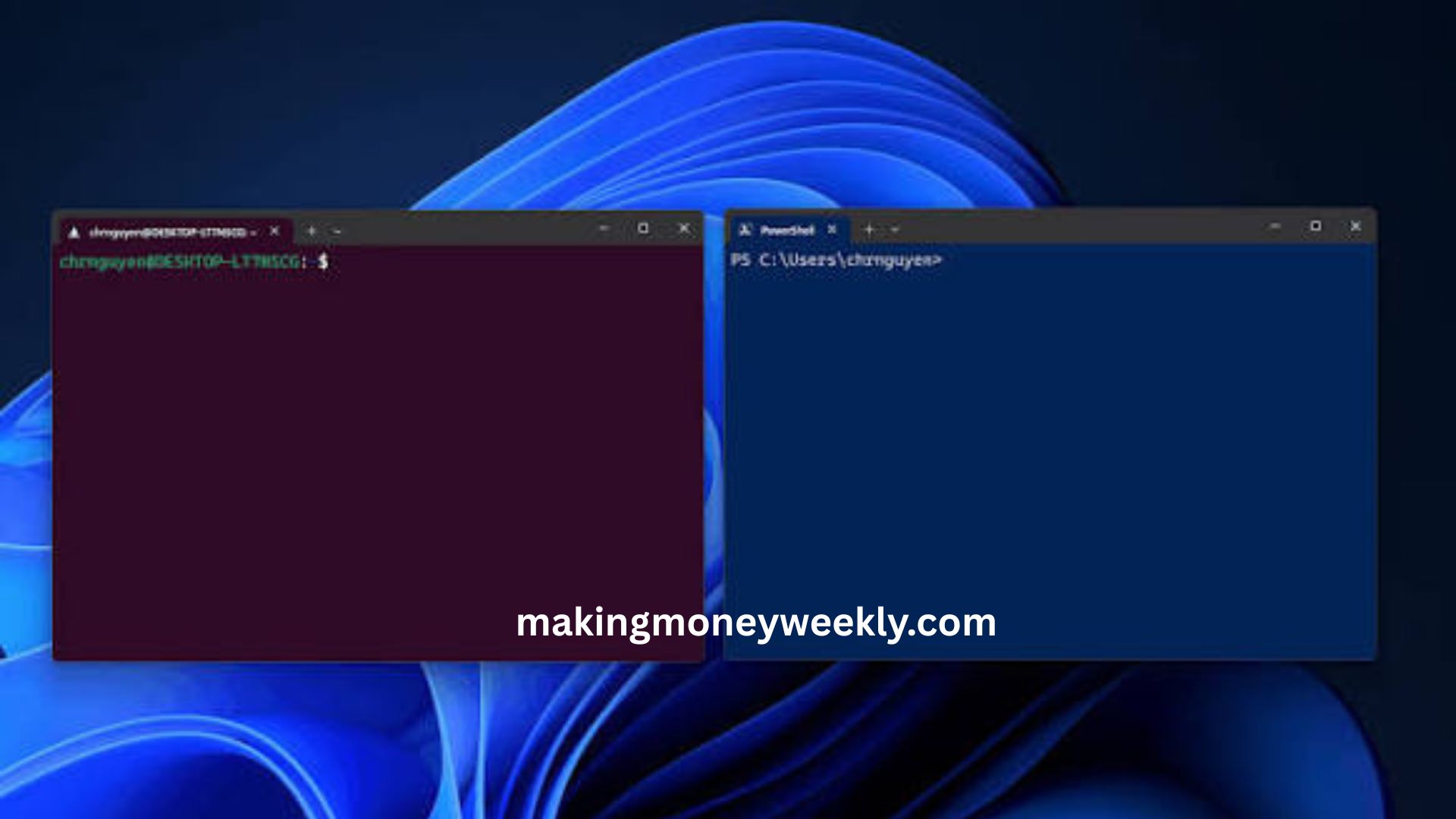
Windows Terminal has become a powerful command-line application for Windows users who need more than a basic command prompt. Designed for developers, system administrators, power users, and technical users, it brings multiple command-line environments into one modern interface.
This Windows Terminal review explores its main features, customization options, performance, usability, and limitations. The goal is to help users understand whether Windows Terminal is a practical choice for everyday command-line work or advanced development tasks.
Read More: T Edit Online Review: Features, Tools & Performance
What Is Windows Terminal?
Windows Terminal is a modern terminal application designed for Windows. It supports several command-line tools and shells within a single application. Users can work with Command Prompt, PowerShell, Azure Cloud Shell, Windows Subsystem for Linux, and other command-line environments. Instead of opening separate windows for different tools, users can organize multiple sessions through tabs and panes.
The application also provides a modern interface compared with traditional Windows command-line tools. Its design focuses on flexibility, speed, keyboard navigation, and customization.
Windows Terminal Features
Windows Terminal includes a wide range of features that make command-line work more convenient.
Multiple Tabs
One of the most useful features is tab support. Users can open several command-line sessions in one window. For example, one tab can run PowerShell while another runs Command Prompt. A third tab can connect to a Linux environment through WSL. This setup reduces desktop clutter and makes switching between environments easier.
Split Panes
Windows Terminal also supports split panes. A single window can contain multiple command-line sessions at the same time. Users can arrange panes horizontally or vertically based on their workflow. Developers can use one pane for running an application while another handles commands or logs. This feature can improve productivity during development and system administration tasks.
GPU-Accelerated Rendering
Windows Terminal uses GPU-accelerated text rendering to provide a responsive interface. GPU acceleration can help the application handle large amounts of terminal output smoothly. It also supports modern visual effects and text rendering features without relying entirely on the CPU. For users who frequently work with command-line applications, responsive rendering can make a noticeable difference.
Unicode and Emoji Support
Modern terminal environments need to handle more than basic ASCII characters. Windows Terminal supports Unicode, making it suitable for multilingual command-line work. It also supports emoji and other modern characters, depending on the selected font and environment.
Search
The built-in search feature helps users find text within terminal output. This can be particularly useful when working with long logs, command results, or configuration information. Instead of manually scanning the terminal, users can search for specific words or phrases.
Command Palette
Windows Terminal includes a command palette that provides quick access to available actions. Users can search for commands instead of remembering every keyboard shortcut. This makes advanced features easier to discover. For experienced users, the command palette can also speed up common tasks.
Windows Terminal Customization
Customization is one of Windows Terminal’s strongest areas. Users can change the application’s appearance, behavior, profiles, shortcuts, and terminal layouts.
Themes and Color Schemes
Windows Terminal allows users to create and apply different color schemes. Users can choose dark or light backgrounds, modify text colors, adjust cursor colors, and create personalized terminal themes. This flexibility is useful for users who spend several hours working in the command line.
Background Options
The terminal supports different background styles. Users can configure solid colors, transparency effects, and background images. These options allow users to create a workspace that matches their preferences without changing the functionality of the terminal. Visual effects should be used carefully because excessive transparency or background imagery can reduce text readability.
Font Customization
Users can select different fonts for terminal profiles. Font choice can have a major impact on readability, especially for programming and scripting. Developers often prefer fonts designed for coding because they make characters easier to distinguish. Windows Terminal also supports modern font features depending on the selected font.
Profiles
Windows Terminal uses profiles to manage different command-line environments. A profile can contain settings for PowerShell, Command Prompt, WSL, Azure Cloud Shell, or another supported shell.
Each profile can have its own:
- Font
- Color scheme
- Starting directory
- Background
- Cursor style
- Key bindings
- Appearance settings
This makes it possible to create a personalized setup for each environment.
Keyboard Shortcuts
Keyboard shortcuts are another important part of Windows Terminal. Users can create shortcuts for opening tabs, switching between profiles, changing panes, resizing panes, searching, and performing other actions. Keyboard-focused navigation can make the terminal significantly faster to use. Experienced users can build workflows that require very little mouse interaction.
Windows Terminal Performance
Performance is one of the key reasons many users choose Windows Terminal over older command-line interfaces. The application is designed to handle modern terminal workloads while maintaining a responsive interface.
Fast Startup
Windows Terminal generally provides a quick startup experience on modern Windows systems. Startup time can vary depending on the system, installed profiles, configuration, and applications launched through the terminal. For regular command-line work, the startup experience is usually suitable for everyday use.
Responsive Rendering
Terminal rendering can become important when applications generate large amounts of text. Windows Terminal’s rendering architecture is designed to handle substantial terminal output efficiently. GPU acceleration helps maintain smooth visual performance during demanding workloads. Actual performance still depends on the computer, terminal application, shell, font, and workload.
Resource Usage
Windows Terminal requires system resources because it is a modern graphical application. Resource consumption can increase when users open multiple tabs, run several processes, or use demanding applications inside terminal sessions. For most modern computers, this should not be a major issue. However, users working on older or resource-limited systems may notice a difference compared with lightweight command-line applications.
Windows Terminal for Developers
Windows Terminal is particularly useful for developers. Modern development environments often involve multiple tools and command-line processes. Developers may need Git, package managers, compilers, scripting environments, Docker commands, WSL, or development servers at the same time.
Windows Terminal provides a centralized workspace for these tasks. A developer can keep a project shell open in one pane, run a development server in another, and monitor output in a third. Integration with WSL also makes Windows Terminal useful for developers who work with Linux-based development environments.
Windows Terminal for System Administrators
System administrators can also benefit from Windows Terminal. PowerShell remains an important administration tool on Windows, while Command Prompt continues to support many traditional commands and scripts. Having multiple sessions in one application can simplify administrative workflows. Administrators can also customize profiles for different environments and use keyboard shortcuts to move quickly between sessions.
Windows Terminal User Experience
The user experience is one of Windows Terminal’s strongest advantages. The interface feels more modern than traditional command-line applications. Tabs, panes, profiles, themes, and search tools make the application easier to organize.
New users may need some time to understand all available settings. The large number of customization options can feel overwhelming at first. Once configured, however, Windows Terminal can provide a highly efficient command-line workspace.
Windows Terminal Security
Windows Terminal itself is primarily a terminal interface. The security of commands executed through it depends heavily on the shell, application, script, permissions, and user actions. For example, running a PowerShell command with administrator privileges can make significant system changes.
Users should therefore review commands before executing them, especially when working with administrative permissions or scripts obtained from external sources. Windows Terminal should not be viewed as a security layer. It provides the interface, while the underlying shell and operating system control command execution and permissions.
Advantages of Windows Terminal
Windows Terminal offers several notable benefits.
Modern Interface
Its modern interface provides a better experience than traditional command-line windows.
Strong Customization
Users can personalize profiles, fonts, colors, backgrounds, shortcuts, and layouts.
Multiple Environments
Several command-line environments can operate within one application.
Tabs and Panes
Tabs and split panes make multitasking easier.
Developer Friendly
Integration with PowerShell, WSL, Git, and other command-line tools makes it valuable for developers.
Good Performance
GPU-accelerated rendering helps provide a responsive experience during regular terminal workloads.
Limitations of Windows Terminal
Despite its strengths, Windows Terminal is not perfect. The number of available settings can make configuration complicated for beginners. Users who only need basic commands may find many of its features unnecessary. Resource usage can also be higher than that of very lightweight command-line applications.
Some functionality depends on the shell or environment being used. Windows Terminal provides the interface, but it does not automatically add advanced capabilities to every command-line tool. Another limitation is that users may need to understand profiles and configuration settings to get the most from the application.
Windows Terminal vs Traditional Command Prompt
Traditional Command Prompt remains useful for simple Windows commands and legacy scripts. Windows Terminal, however, provides a broader environment. Command Prompt focuses on a single command-line interface, while Windows Terminal can host multiple shells in one application.
For users who frequently switch between PowerShell, Command Prompt, WSL, and other environments, Windows Terminal is generally more convenient. Users who only run occasional basic commands may not need its advanced features.
Is Windows Terminal Worth Using?
For developers, system administrators, technical users, and power users, Windows Terminal is a strong choice. Its combination of tabs, panes, profiles, customization, search, keyboard shortcuts, and modern rendering makes command-line work more flexible.
Beginners can also use it, although some customization features may require additional learning. The biggest advantage is flexibility. Users can start with a simple configuration and gradually add features as their workflow develops.
Frequently Asked Questions
What is Windows Terminal used for?
Windows Terminal provides a modern interface for Command Prompt, PowerShell, WSL, and other command-line environments.
Is Windows Terminal free?
Yes. Windows Terminal is available as a free application for supported Windows systems.
Can Windows Terminal run PowerShell?
Yes. PowerShell can be opened directly through a Windows Terminal profile.
Does Windows Terminal support Linux?
Yes. Windows Terminal can work with Linux distributions through Windows Subsystem for Linux.
Can Windows Terminal be customized?
Yes. Users can customize themes, fonts, colors, backgrounds, profiles, shortcuts, tabs, and pane layouts.
Is Windows Terminal faster than Command Prompt?
Windows Terminal uses modern rendering technology and is designed for responsive performance, but actual performance depends on the workload and system.
Is Windows Terminal good for developers?
Yes. Its support for PowerShell, WSL, Git, development tools, tabs, and split panes makes it useful for many development workflows.
Conclusion
Windows Terminal is a capable modern command-line application that combines usability, customization, and performance. Its support for multiple shells makes it more versatile than traditional Windows command-line tools. Tabs and panes improve multitasking, while profiles and themes allow users to create personalized environments. Performance is also solid for everyday command-line workloads, particularly on modern hardware. However, users with simple requirements may not need its extensive customization options. Overall, Windows Terminal is a practical choice for anyone who regularly works with command-line tools on Windows.
